

In addition to selling jewelry, this submodule lets you undertake repairs. The main page of the Repair center consists of two tabs: TICKETS IN PROGRESS and CLOSED TICKETS. The first tab shows all tickets from the current location that are under repair, while the second tab lists the locations’ closed tickets.
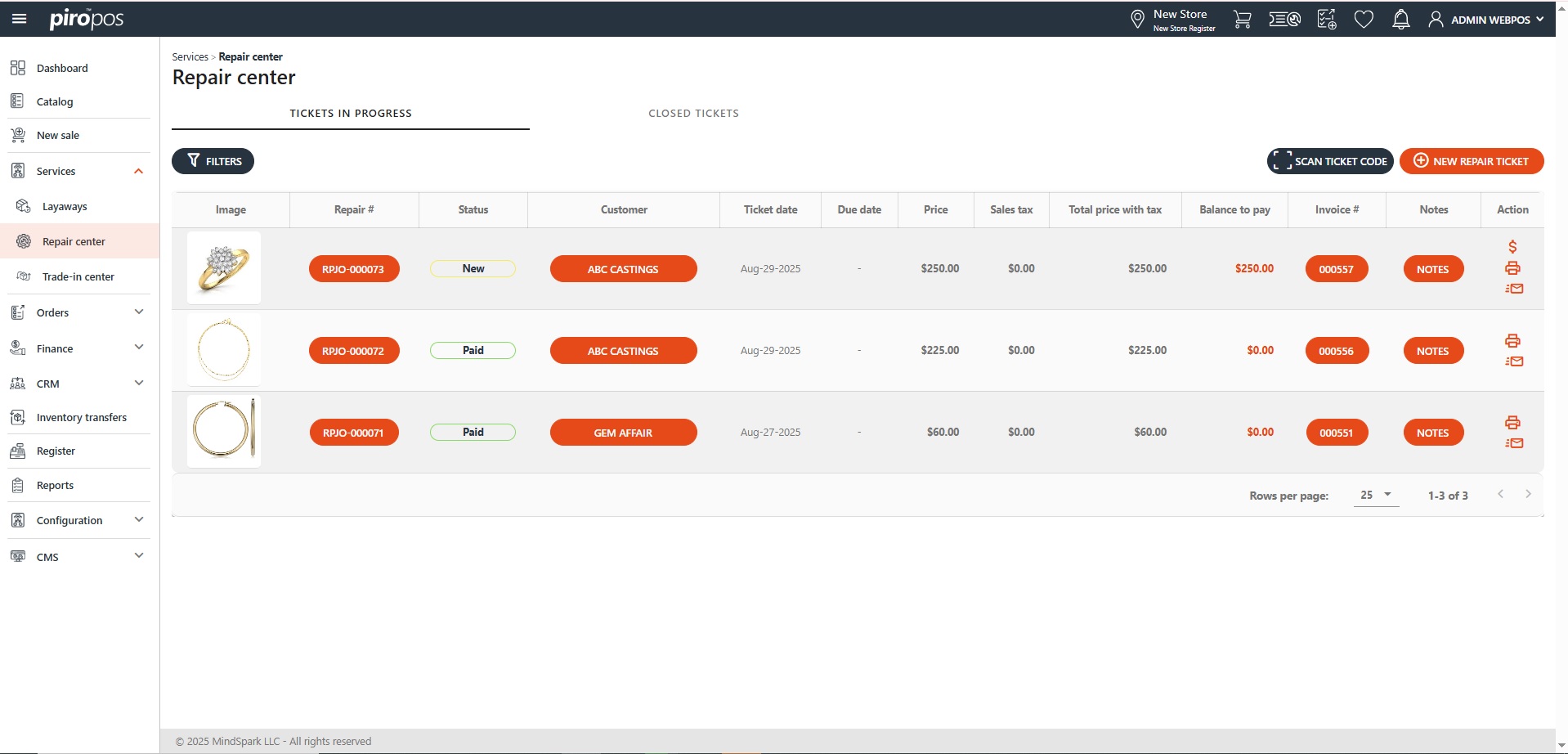
To create a new repair ticket, simply click the NEW REPAIR TICKET button above the list. This will open the New repair ticket page:
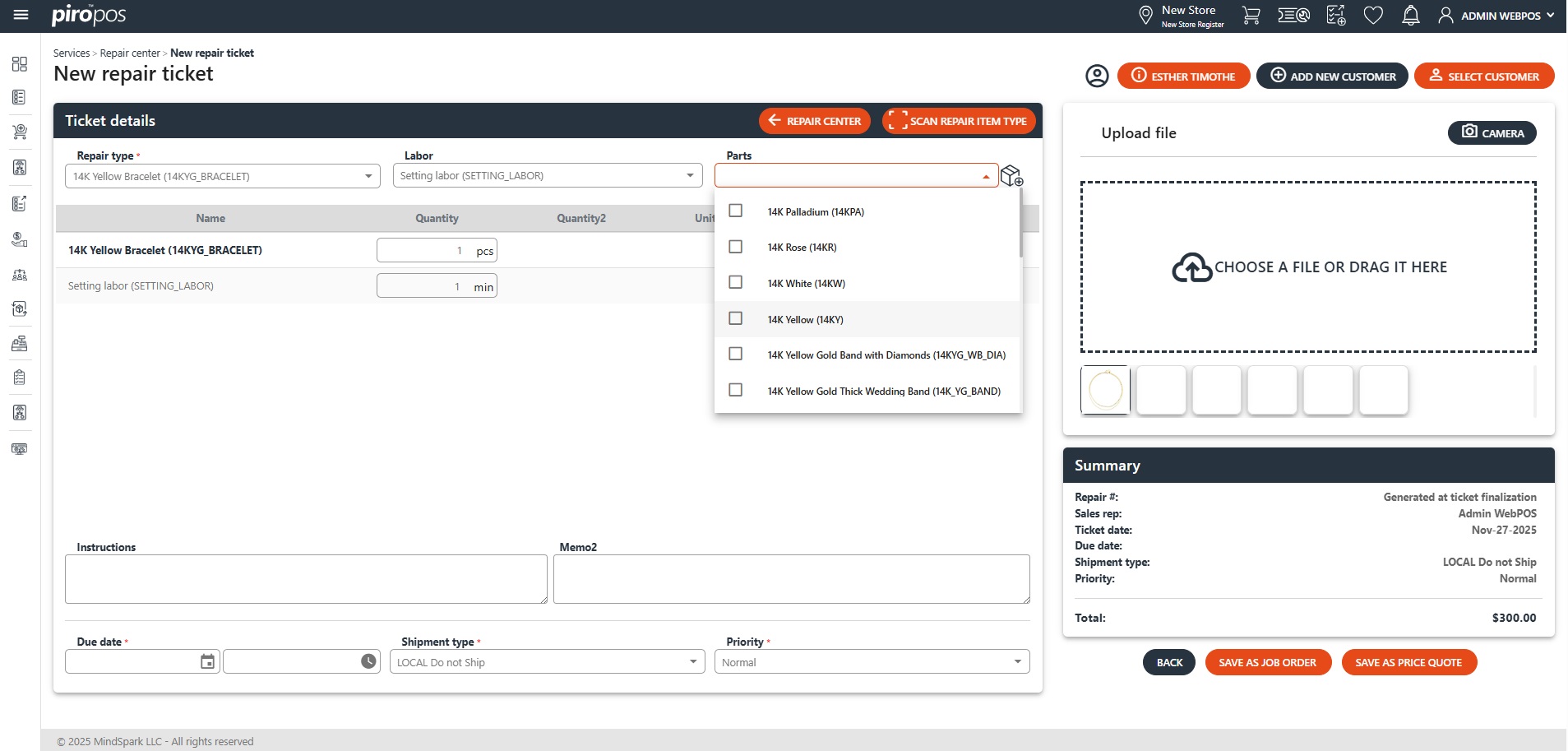
Choose a repair type and a labor by selecting them from the drop-down menus, and any additional parts if needed. The item image will appear on the right side of the page, click on the Camera button below it if you would like to add more pictures to the repair ticket. The item, labor and parts names will appear in the ‘Name’ column, with their quantities and prices displayed next to them. You can modify the quantities by clicking the addition or subtraction signs in the ‘Quantity’ column, or delete items using the X in the ‘Actions’ column.
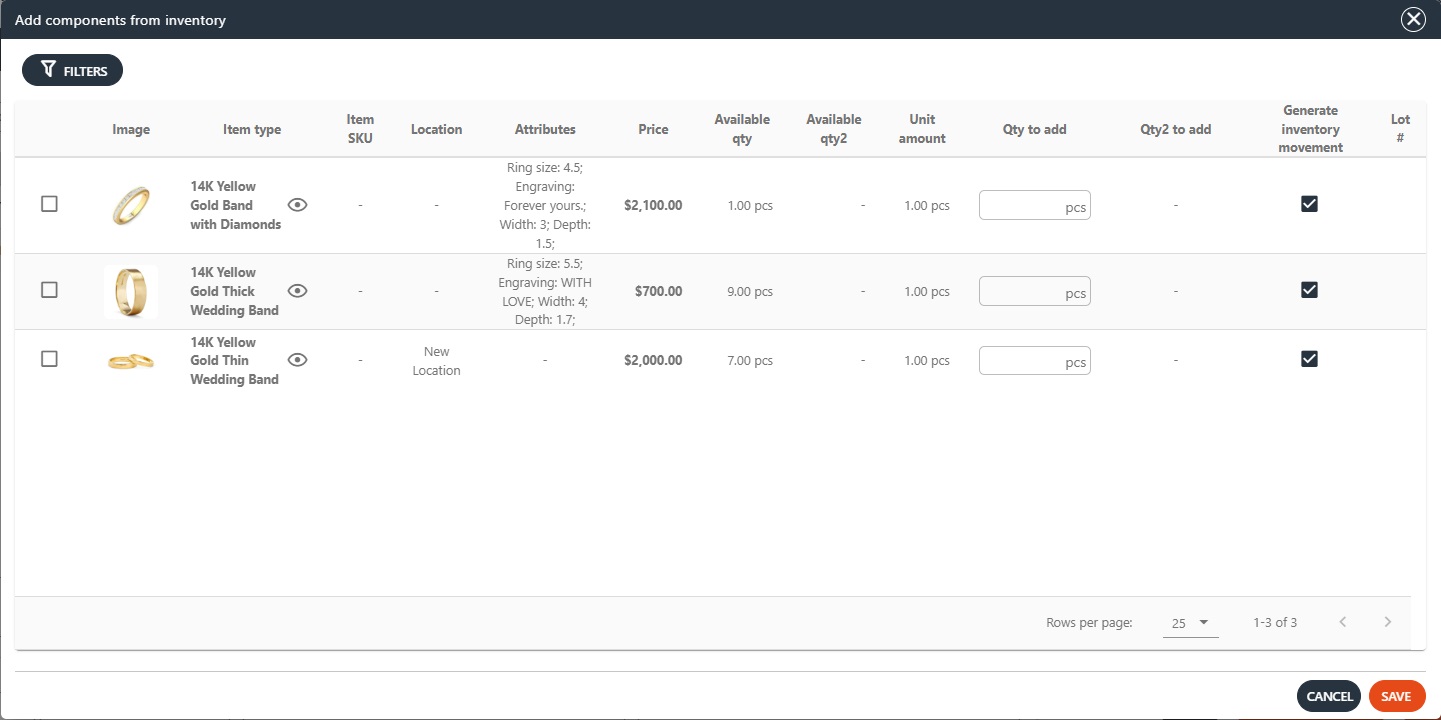
Adding parts from inventory is also possible from here by using the cube icon next to the Parts field. Check the line of the item you would like to add to this ticket and click to the SAVE button:
Before sending the repair job into the backoffice system, you can add instructions to your repair job into the Instructions field, then choose the due date, shipment type, and priority:

Note 1: the Shipment type and Priority can be configured to have default values in the Configuration – Admin settings’ Order settings section:
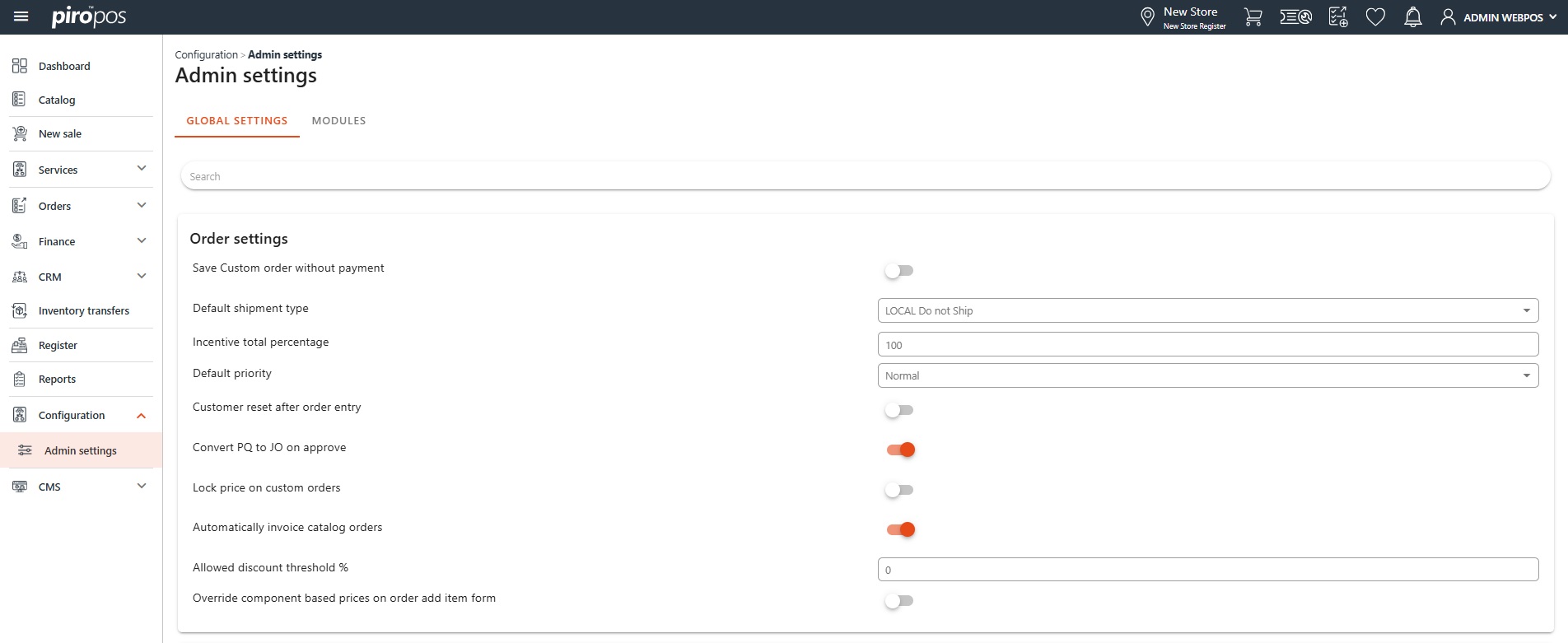
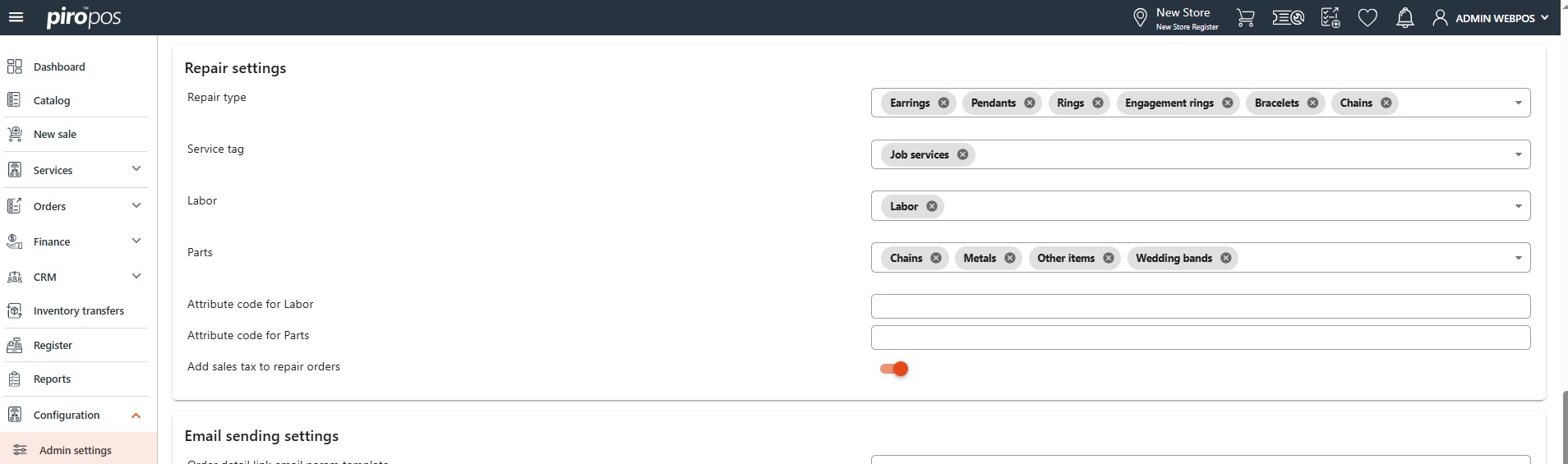
Note 2: the Repair type, Service tag and Parts drop-down contents can be set up in the Configuration – Admin settings’ Repair settings section:
The payment process is similar to the new sale process; the Summary box displays all the entered or selected information about the item:
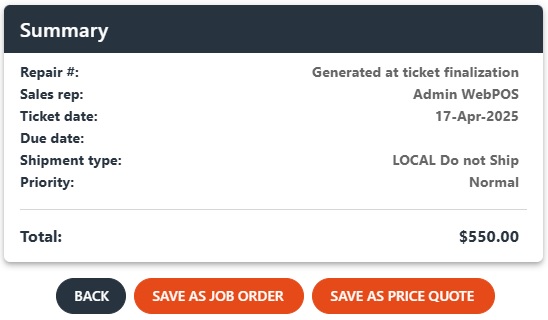
There are two different ways to save the ticket: as a repair order or as a repair price quote. When the payment is completed, a repair job order/price quote is sent into the backoffice, visible on the Job order or Price quote list with the RPJO or RPPQ initials.