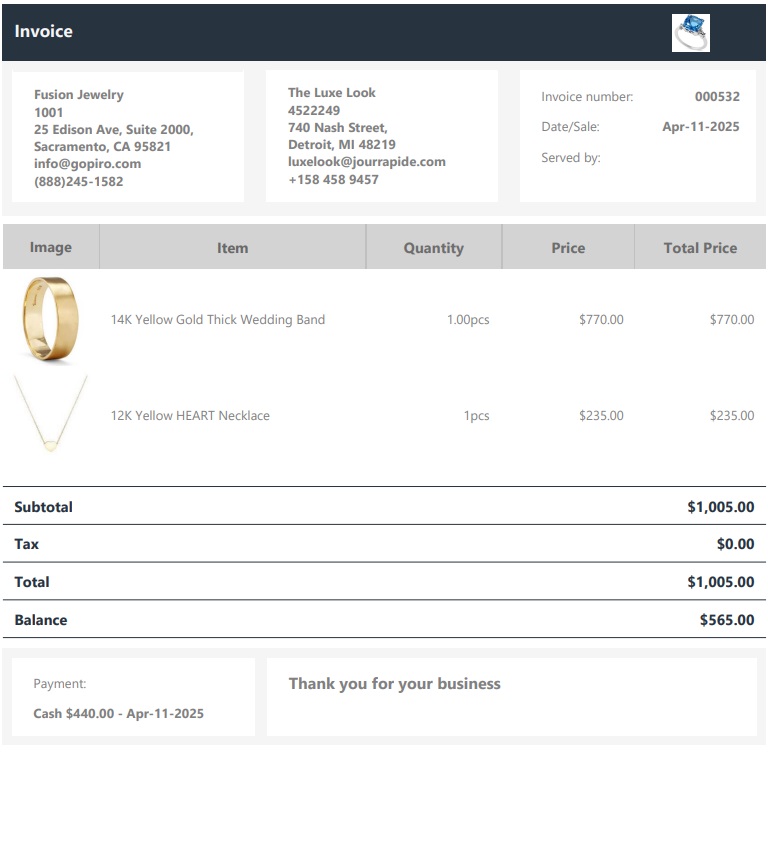

The Catalog orders submodule from the main Orders module shows all existing catalog orders as visual cards. If you have an extensive order history, the filters will make it easier to find the specific order you are looking for. You can filter by customer, date range, order and invoice number, item type and sales person.
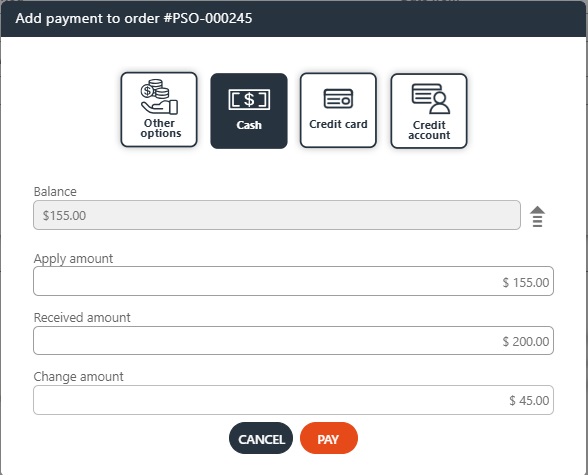
There are two types of order cards: partially paid and fully paid. The filter also lets you narrow down the list to only view unpaid orders, you will see a ‘Pay’ icon on every order that is not fully paid:
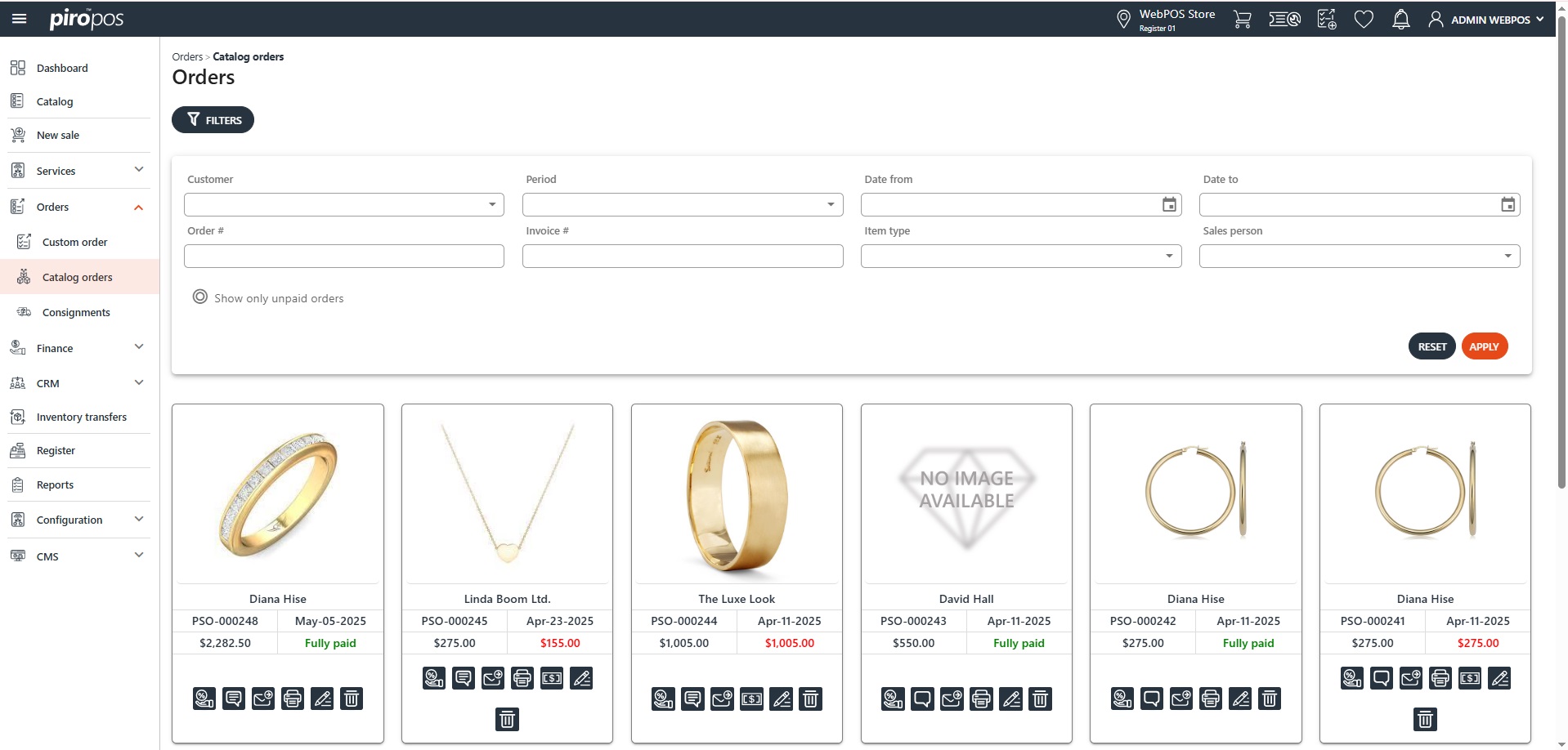
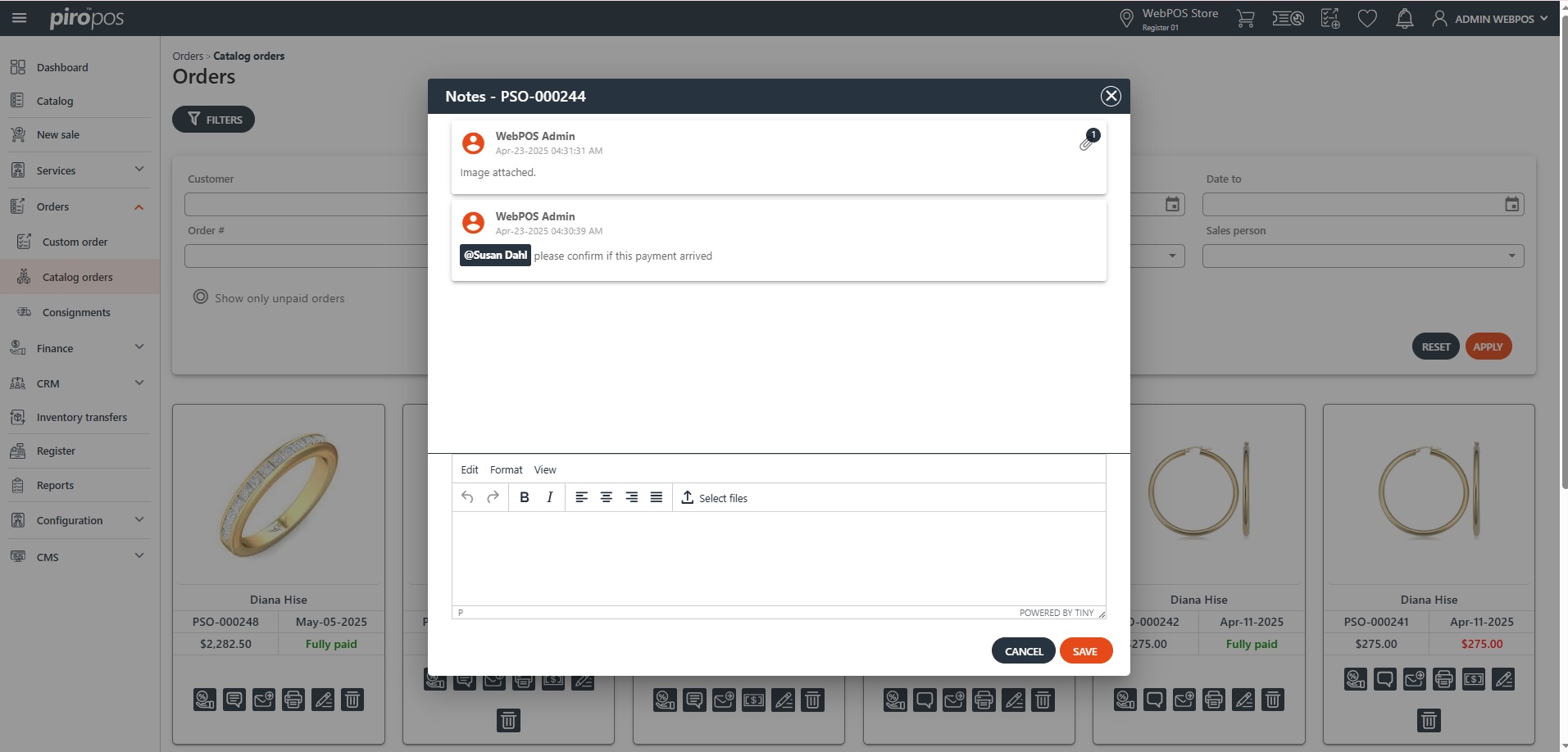
Each order card has six or seven icons. The first icon opens the Sales commissions dialog, where commission percentage can be added. The second icon opens the Notes dialog, allowing you to add order-related notes. You can also indicate other users when adding attachments in the notes:
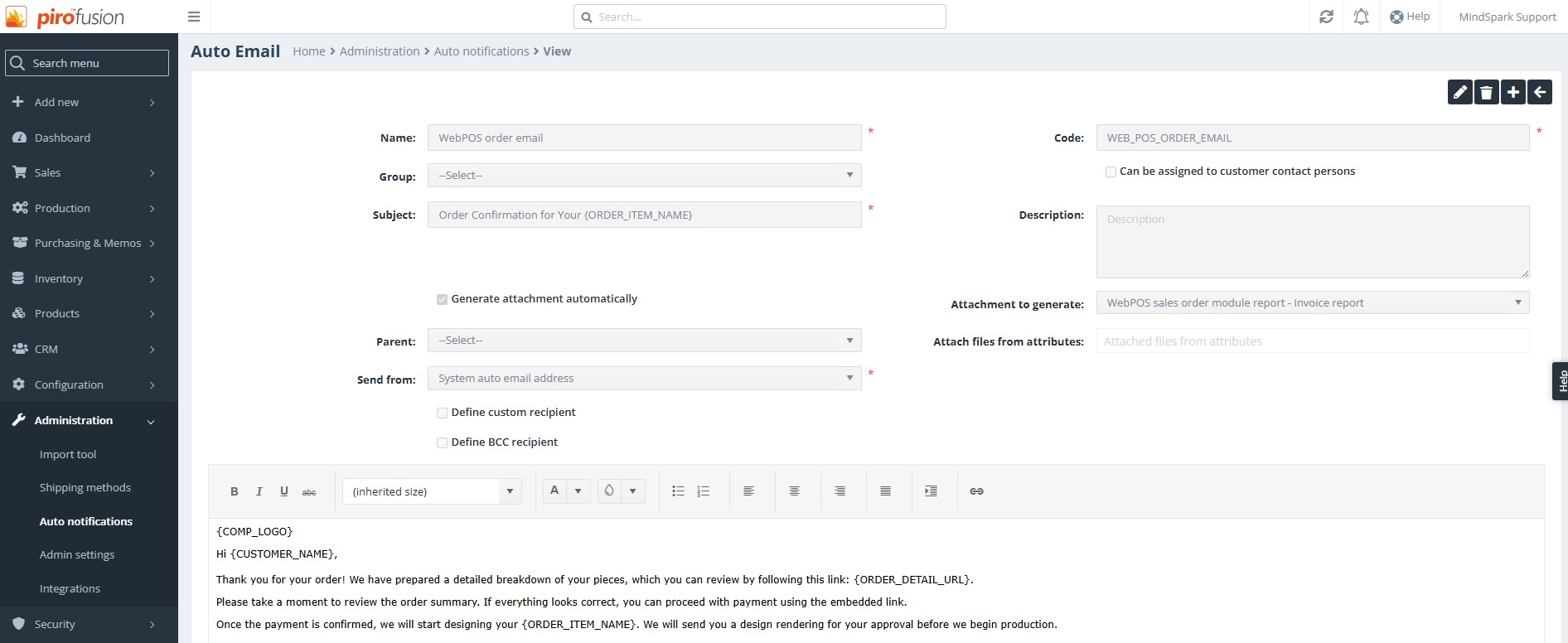
The third icon opens up an email preview that content can be set up in PIRO Fusion – Administration – Auto notifications:
The fourth icon brings up the Receipt’s/Invoice’s printable preview: