

The Inventory transfers module is used to change or track the status of transferred items. It lists the transfers for the store where the salesperson is currently logged in.
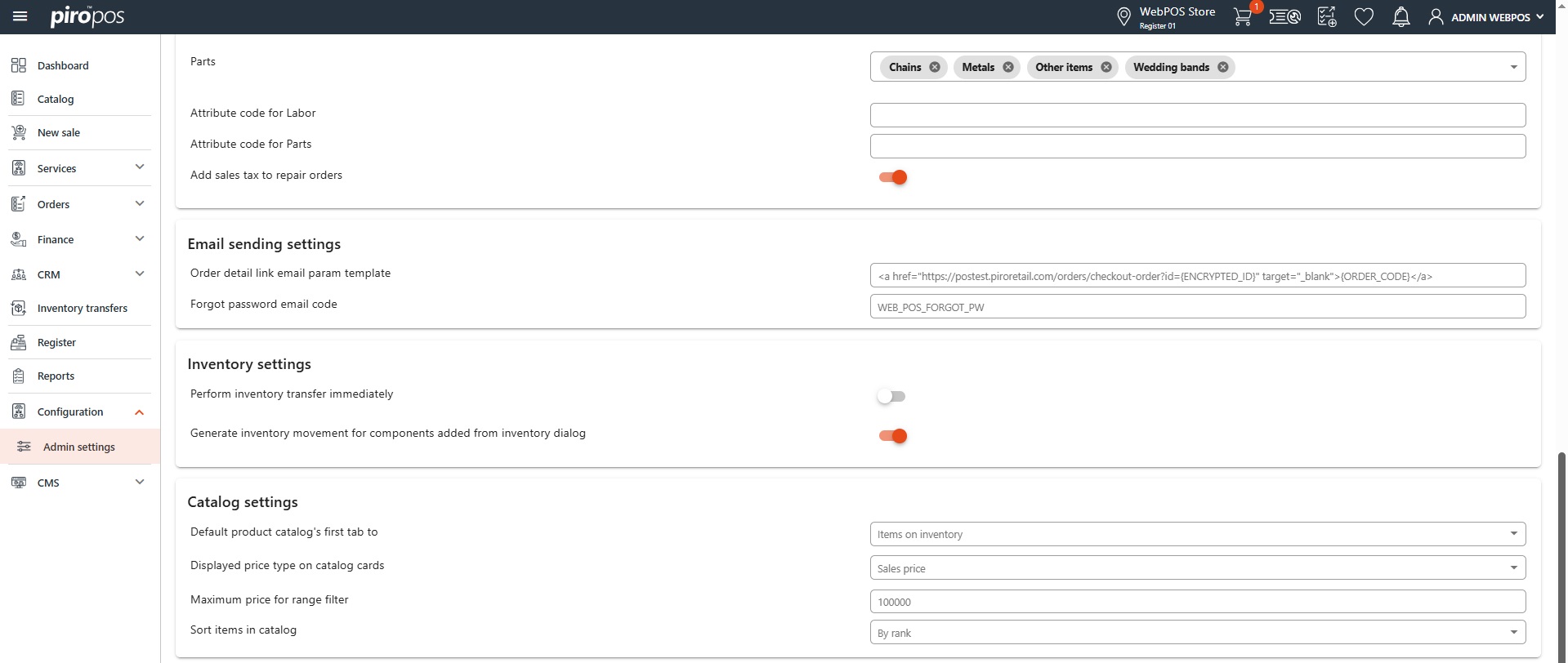
There are two ways to create an inventory transfer, determined by the “Perform inventory transfer immediately” admin setting:
-
If the setting is enabled, the transfer is executed immediately upon request—no approval is needed.
-
If the setting is disabled, then sending a transfer request does not generate inventory movement right away; instead, a notification is sent to the store from which the transfer was requested.
Transfer requests can be initiated via the Catalog, by selecting the item type and clicking the small inventory icon. In the popup grid, you’ll see the list of Stores, Inventory locations, and Available quantities on the left side. In the Qty to sell column, you can enter the quantity intended for sale.

The Destination location and Selected quantity columns relate to the transfer: the first one sets the target location, while the second sets the quantity to transfer. Clicking the TRANSFER button will either immediately execute the transfer or send a request to the relevant store’s module, depending on the above mentioned admin setting.
These requests or transfers are listed in the Inventory transfers module. The transfers can be filtered by item type, a predefined period, the source store and its statuses:
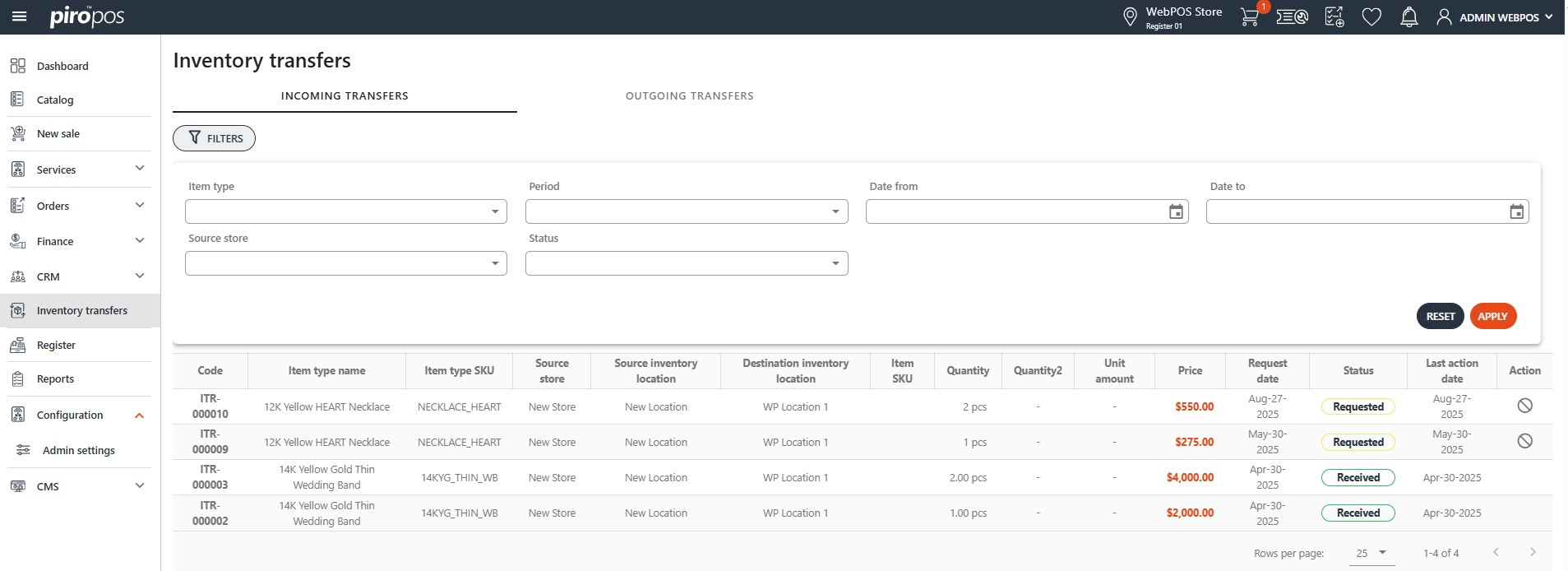
The module consists of two grids: one for INCOMING TRANSEFERS and one for OUTGOING TRANSFERS, showing the respective requests for the given store. The Inventory transfers list aggregates transfers where either the Source store or the Destination store is the active store.
NOTE: the Source store column appears only in the Incoming transfers grid, the Destination store column appears only in the Outgoing transfers grid.
On the INCOMING TRANSFERS tab, the logged-in user can see which items need to be sent from their own store, what has already been sent, and what has been requested from other stores and their current statuses.
The possible transfer statuses are:
- Requested
- Approved
- Rejected
- In Transit
- Received
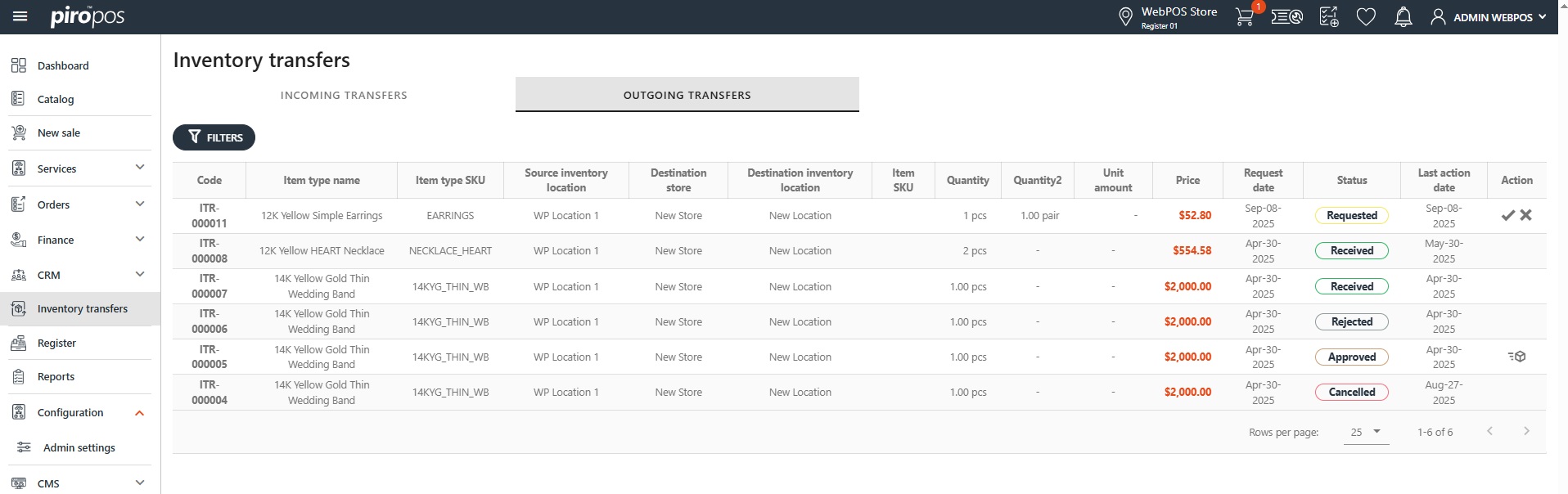
On the OUTGOING TRANSFERS grid, the logged-in user can approve, reject, or send the transferred item using the Actions column. If a transfer is given the Approved status, a Send icon appears. Clicking it changes the item’s status to In Transit, indicating that the item has been physically sent to the other store.
NOTE: this action also generates an outgoing movement from the back-office inventory, from the location where the item is being transferred out.
In rows where the destination store matches the logged-in user’s store and the transfer status is In Transit, a Receive icon appears. When the user clicks it, the item is added to the store’s inventory. The item’s status then changes to Received.
NOTE: this action triggers an incoming movement in the back office, with the destination set to the selected location.
If the mentioned admin setting is enabled, the transfer completes immediately and the item’s status will be Received by default. If the setting is disabled, the initial status of the transfer will be Requested.