

Besides the CRM module, customer management can be handled through various modules that directly facilitate customer interactions, including:
- New sale
- Services – Layaways
- Services – Repair center
- Services – Trade-in center
- Orders – Custom orders
- Finance – Customer credits
Add a new customer
You can add a new customer by clicking the ADD NEW CUSTOMER button on the right side, above the tables.

Enter all the necessary information about the customer in the following window. Use the toggle to switch between Person or Company. The red star next to the field names indicates that the information is mandatory:
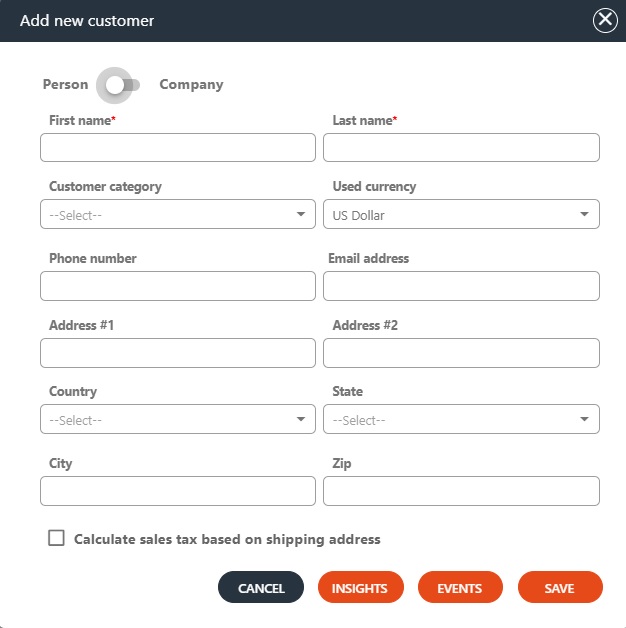
Clicking on the INSIGHTS button brings up a new dialog box, allowing you to add additional notes about the customer. Click on the SAVE button to save the new customer.
NOTE: customers added from here will be saved in the backoffice system as well.
Managing customers
You can select a customer by clicking the SELECT CUSTOMER button from the upper right corner of the page. You can find and manage customer profiles by searching for the email, name, or phone number – partial searches are also valid. Adding new customer is possible from here using the + button:
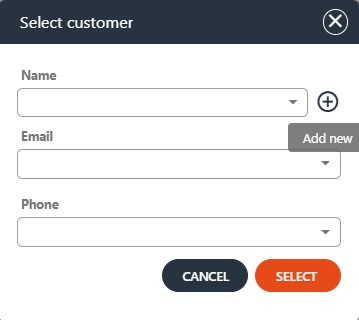
After selecting a customer, the customer’s name will appear in the header bar, indicating that all transactions will be registered to that customer.
NOTE: you cannot proceed to Payment without selecting a customer, and selecting a customer is a prerequisite for registering a sales order, layaway, repair order, trade-in or any custom orders.
Customer summary – Main info
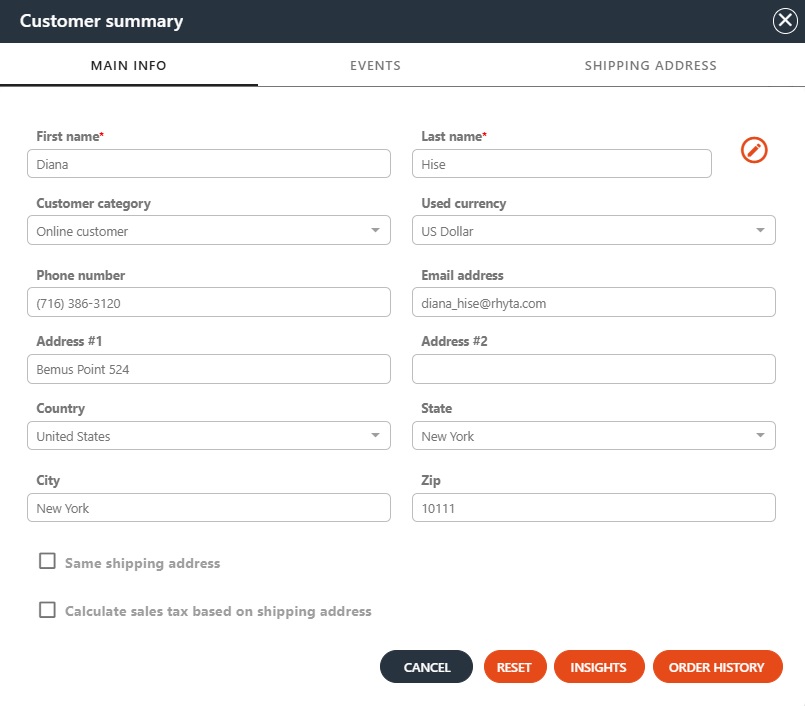
By clicking on the selected customer’s name, their account details become visible. Many actions can be performed here: editing the customer profile, adding events and shipping addresses or viewing the customer order history.
Customer summary – Events
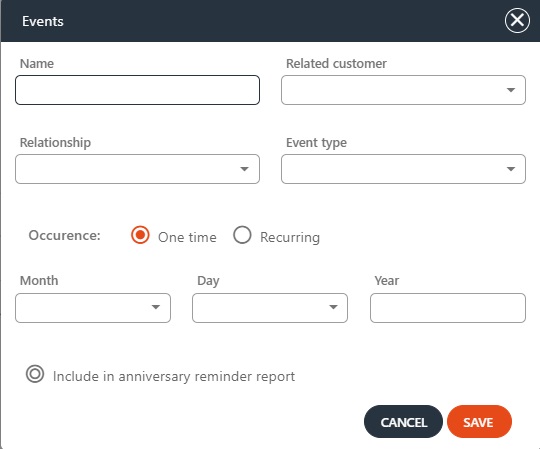
There is a slight difference between company and person-type customers – events can only be added for persons. Open a person type customer and add customer events by clicking the ADD EVENT button. Specify the event’s name and, optionally, link it with another customer who already exists in your database. Specify their relationship and event type, set up the occurrence, and add the date. To send an anniversary report for the customer, enable the Include in anniversary reminder report option. Multiple events can be saved, each one being displayed in a separate row:
Customer summary – Shipping address
If the customer has a different shipping address, uncheck the Same shipping address checkbox in the MAIN INFO tab. Click on the SHIPPING ADDRESS tab to access the customer’s shipping addresses and use the orange ADD NEW SHIPPING ADDRESS button to add a new one in this dialog:
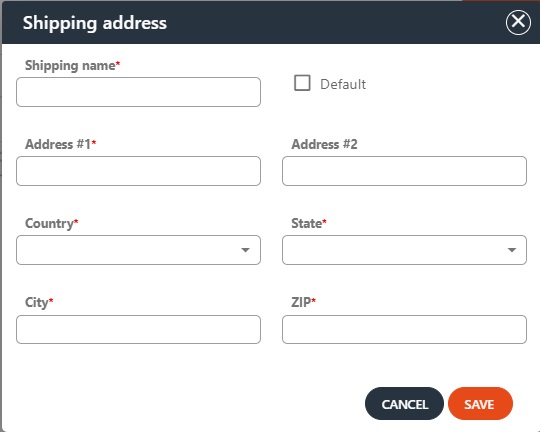
Fill the fields in the shipping address dialog – the red star next to the field names indicates that the information is mandatory. Click on SAVE for adding the new shipping address to the customer: