
The current Dashboard contains 8 widgets with different types of information:
1.Total sales: shows the number of sales, indicating how many sales occurred daily, weekly, and monthly:
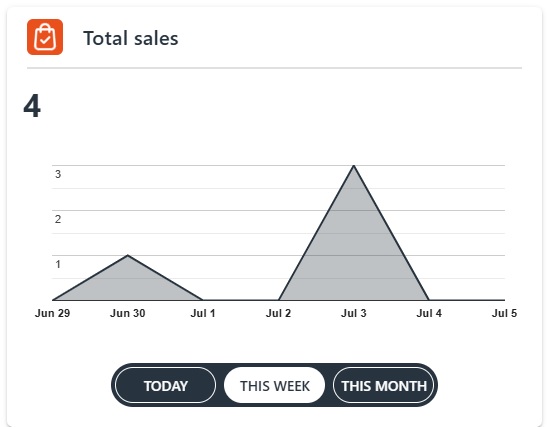
- Today’s chart: shows the total daily sales hour by hour.
- This week’s chart: shows the total weekly sales day by day.
- This month’s chart: shows the total monthly sales week by week.
2. Sales amount: shows the value of sales, indicating the sales amount that occurred daily, weekly, and monthly:
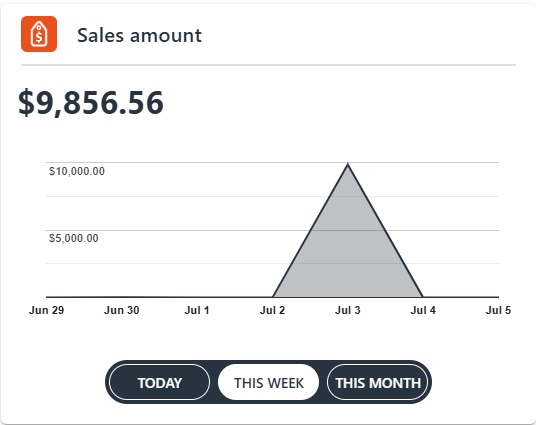
- Today’s chart: shows the total daily sales, hour by hour.
- This week’s chart: shows the total weekly sales, day by day.
- This month’s chart: shows the total monthly sales, week by week.
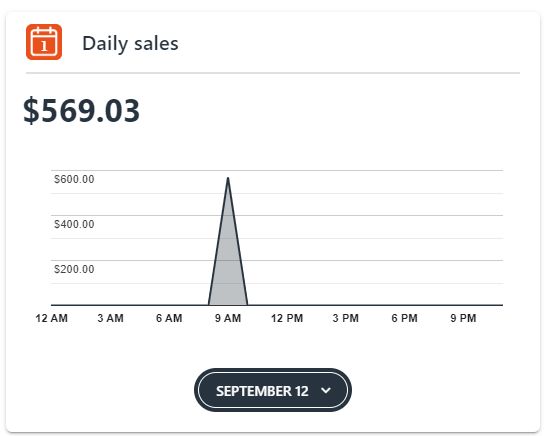
3. Daily sales – with date picker: shows the total daily sales, hour by hour.
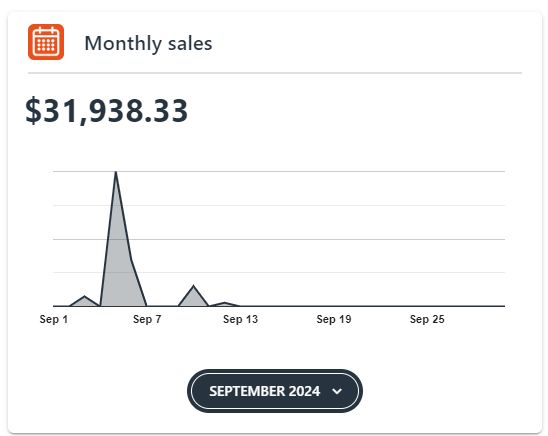
4. Monthly sales: shows the total monthly sales, week by week.
5. Sales orders:
- Today’s grid: shows the daily sales orders along with their images, numbers, statuses, and last payment dates.
- This week’s grid: shows the weekly sales order information.
- This month’s grid: shows the monthly sales order information.
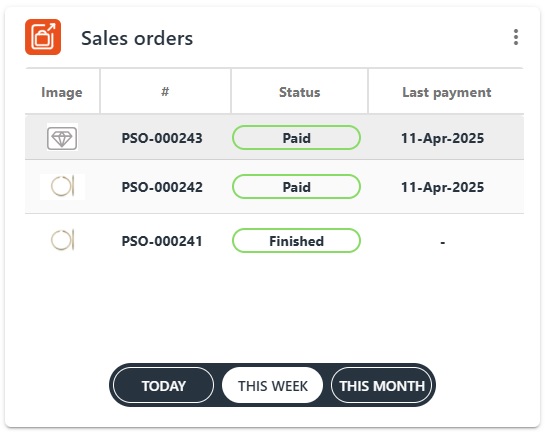
The sales order summary list appears when you click on the kebab menu (three dots) in the upper right corner of the grid, showing the number of orders with their statuses.
6. Layaways:
- Today’s grid: shows the daily layaways with their images, numbers, statuses, and last payment dates.
- This week’s grid: shows the weekly layaway information.
- This month’s grid: shows the monthly layaway information.
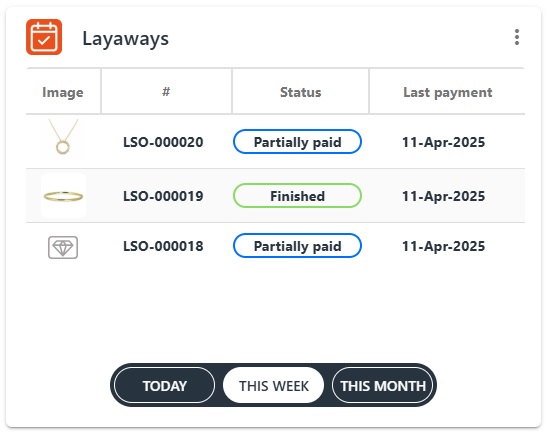
The layaway order summary list—similar to the sales orders—appears when you click on the kebab menu (three dots) in the upper right corner of the grid, showing the number of layaways with their statuses.
7. Custom orders:
- Today’s grid: shows the daily custom orders – price quotes, job orders – with their images, numbers, statuses, and last payment dates.
- This week’s grid: shows the weekly custom orders information.
- This month’s grid: shows the monthly custom orders information.
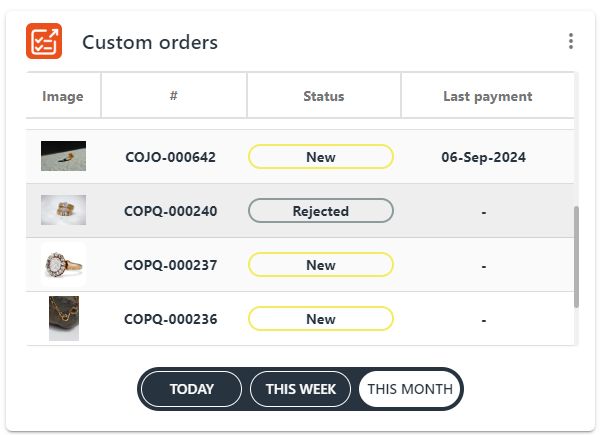
The custom order summary list—similar to the sales orders—appears when you click on the kebab menu (three dots) in the upper right corner of the grid, showing the number of custom orders with their statuses.
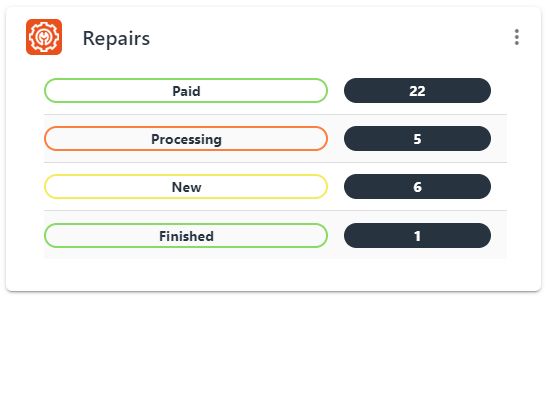
8. Repairs:
- Today’s grid: shows the daily repair orders with their images, numbers, statuses, and last payment dates.
- This week’s grid: shows the weekly repair orders information.
- This month’s grid: shows the monthly repair orders information.
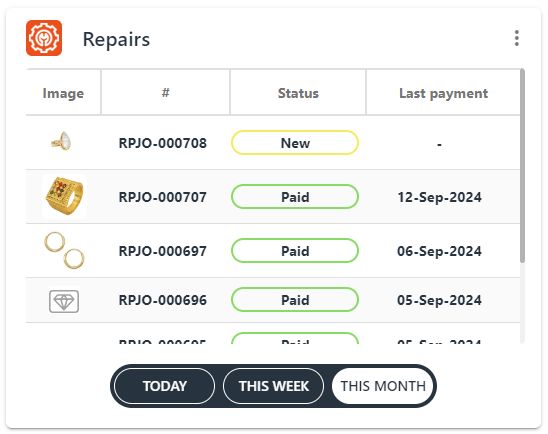
The repair order summary list—similar to the sales orders—appears when you click on the kebab menu (three dots) from the upper right corner of the grid, showing the number of repairs with their statuses: